
browsers
Four years with Google Chrome, and I'm never going back
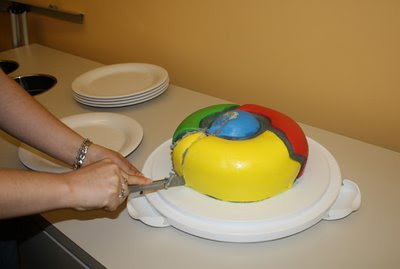
Today is Labor Day in the United States. It's a federal holiday dedicated to the American workforce, celebrating, as the U.S. department of labor puts it, the "contributions workers have made to the strength, prosperity, and well-being of our country."
Every year, the Labor Day holiday falls very closely to the anniversary of Google's launch of the beta version of the Google Chrome Web browser. Released on September 1, 2008, Google Chrome is now four years old, and I am taking the opportunity on this holiday to celebrate the workhorse that is Chrome.
Chrome is my pickup truck
The first graphical Web browser I ever used was Netscape Navigator. This was in 1994, and it was on X11-based SGI workstations at the UMBC computer lab where my older brother was studying Computer Science. After eighteen years and two so-called browser wars, I can say with a certain amount of confidence that I no longer derive any personal identity from the browser I use.
For many, browsers are like cars. They serve not only as a tool for transportation, but they also serve as an identity for the driver. The appearance of the vehicle, the style in which he uses the vehicle, and the aftermarket customizations are all points of pride for drivers and browsers alike. Yet at this point in my life, the browser I use is purely utility, and if it can't do what I need, I am not even going to try to fix it. I'm just going to use something else. It's a pickup truck.
That is why I'm still using Chrome today. Four years ago, when I started testing the beta of Chrome, my daily browser was Opera and I was more or less satisfied with it. Of course, it couldn't do everything, and I had to keep both Internet Explorer and Firefox installed for those occasions where I encountered something Opera couldn't handle.
The beta of Chrome also encountered things it couldn't handle, and it lacked a lot of the shortcuts that I'd gotten used to in Opera. Yet the simplicity of the UI, omnibox, settings management, and built-in security of Chrome were all appealing. In Chrome's public beta period between September and December 2008, I found that I still had to open other browsers to get my work done, but Opera wasn't one of them. Chrome simply slid in as the default window through which I'd view the Web. It wasn't until recently that I've found I can get by without ever opening another browser. I've stuck with Chrome, and my behaviors have been molded to it.
Four more years
In addition to being near Labor day, this particular Chrome Anniversary falls in an election year, so It's a good time to see what Google has done for Chrome in the first four years.
In the first year, Google provided a grand total of 51 developer updates, 21 beta updates and 15 stable updates to Chrome, and pushed some 3,505 bug fixes. In July 2009, Google announced the concept of Chrome OS. Then, upon Chrome's first anniversary, Google introduced an overhauled UI with skinnability, a refreshed "new tab" page, and new HTML5 capabilities.
In the second year, Google finalized and released Mac and Linux versions of Chrome, debuted side-by-side view, autofill, password manager, bookmark and preference sync, and nearly 6,000 browser extensions. Upon Chrome's second anniversary, Google released a version with an even further stripped-down UI.
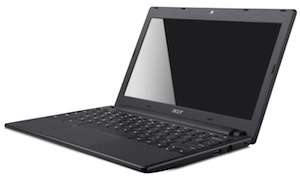
Moving into the third year, we got to actually see Chrome as a full operating system, first with the CR-48 pilot program, and then with Samsung's Chromebooks and Chromeboxes. During Chrome's third year, Google added a new settings interface, a new Javascript engine, "Print to PDF" functionality, the Chrome Web App store and in-app payments, hardware-accelerated browsing, and much more.
- Add new comment
- Read more
- 705 reads
- Feed: BetaNews
Most Popular iOS Web Browser: Chrome

Putting aside the issue of Apple not allowing other browsers to bring their own engines to the table in iOS, there's more to a great browser than just its engine, and there are plenty of great browsers for the iPhone and iPad. Deciding which one is the best for you is a matter of taste, but we asked you last week which ones you thought were the best. Then we tallied your nominations and took a look at the top five iOS web browsers and put them to a vote. Now we're back to highlight the winner. More »
- Add new comment
- 727 reads
- Feed: Lifehacker: Google Chrome
Five Best iOS Web Browsers

Safari may be the default browser for iOS, but it's far from the only one. There are plenty of great web browsers for the iPhone and iPad, and depending on the features you want—whether it's third-party plugins or tab syncing with your desktop, you have options. Last week we looked at the five best Android browsers, and this week we're going to look at the five best for iOS. More »
- Add new comment
- 747 reads
- Feed: Lifehacker: Google Chrome
Five Best Android Web Browsers

There are dozens of great web browsers available for Android, depending on the features you're looking for. Whether it's syncing with your desktop, or super-speedy browsing, or support for flash navigation, you have options galore—some of them popular, others not so much. This week we're going to look at five of the best Android browsers, based on your nominations. More »
- Add new comment
- 953 reads
- Feed: Lifehacker: Google Chrome
BetterChrome Adds Social Sharing and Homescreen Pinning to Chrome for iOS

iOS (Jailbroken): Chrome for iOS is quickly becoming popular and subsequently it's getting tweaked a lot by the jailbreak community. One of the newest tweaks is BetterChrome, a simple little hack that adds quick social sharing and homescreen pinning. More »
- Add new comment
- 774 reads
- Feed: Lifehacker: Google Chrome
Chromizer Makes Chrome for iPhone and iPad that Much Better

iOS (Jailbreak):Chromizer is a small tweak for the iPhone and iPad version of Chrome that adds a much needed full screen mode, and a couple other features.More »
- Add new comment
- 947 reads
- Feed: Lifehacker: Google Chrome
Most of you use Google Chrome
 On June 1, Net Applications and StatCounter will release browser usage share for May. But why wait? Ten days ago I asked which is your preferred primary browser. You answered, and Chrome takes the crown, followed by Firefox and Internet Explorer. The days of IE dominance are over. No wonder the European Union is crawling down Google's throat over search.
- Add new comment
- Read more
- 205 reads
- Feed: BetaNews
Google Chrome Overtakes Internet Explorer as the Number One Browser

According to digital analytics site StatCounter, Google Chrome has passed Internet Explorer as the most popular web browser with 31.88% of the world's web traffic. Internet Explorer wasn't far behind coming in at a close second with 31.47%.More »
- Add new comment
- 910 reads
- Feed: Lifehacker: Google Chrome
Frak, yeah, I'd use iPad if there was Google Chrome
 What timing. I posted my iPad for sale on Craigslist over the weekend -- and two people are jockeying to get ahead of the other to buy it today. But I'm suddenly unsure about selling, after seeing a Macquarie Capital report claiming that Chrome will come to iOS as early as this quarter. Hot damn!
I rarely make decisions based on rumors, nor should you. Besides, the "timing is unclear, but it could be as soon as Q2 and is very likely to be a 2012 event", according to Macquarie Capital. "Could" be this quarter and "likely" this year stink of pure speculation -- or big back door should there be no Chrome for iOS this year. In the end, I'll likely sell the iPad, but must convey this: Chrome would be a very good reason to buy an iOS device but be akin to Google cutting off one limb to save another.
Shine That Tablet's Chrome
Yesterday, and I bantered back and forth about . He called Google services on Apple devices a "pretty good experience", to which I responded: "I would agree about the Google ecosystem with iPhone (and iPad) if Chrome was option. That's the deal breaker for me, sadly. I'm seriously thinking about selling my iPad, for that reason -- and another: Galaxy Nexus is tablet enough for me, so far".
As expressed last week, "You can have iPhone 4S, I'll take Galaxy Nexus". But there's more. I find the Google and Samsung branded smartphone good enough replacement for my iPad, too. Chrome for Android is one reason, Galaxy Nexus' super sharp, 4.65-inch, 1280 x 800 resolution screen is the other. Repeating a sentiment from my Galaxy Nexus HSPA+ review: I'd by the phone just for Chrome, which currently is only available for Android 4 "Ice Cream Sandwich", in beta.
Presumably, Chrome would be available for the newest iOS version, which means broader distribution than Android, since Apple doesn't have the same fragmentation problem. Based on number of devices accessing Google Play during the previous 14 days, Ice Cream Sandwich accounted for just 4.9 percent of the Android install base on May 1. Chrome has limited reach at best on Android, while distribution could be enormous on iOS, assuming people using the browser on the desktop go mobile, too. There, Chrome is third-most used browser and closes on Firefox, according to Net Applications.
Chrome is a huge improvement over the stock Android browser. It's fast and flows, but sync capabilities, which include active tabs on the desktop, really stand out. Last week's huge Google+ for iPhone update shows that the search and information giant can deliver exceptional user experiences on iOS. Why shouldn't Chrome be same?
A TACtical Decision
The problem: Chrome for iOS, particularly iPad, removes an important reason to choose Android tablets over Apple's. Google gains in one area, while giving up somewhere else. If Google offered Chrome for iOS right now, I'd keep my iPad. How many other people considering Apple's tablet would choose it over an Android because of Chrome? You can help answer that question by taking our poll.
In April, with considerably smaller install base, iPad took decisive mobile browser usage share lead from iPhone, according to NetApps. More broadly, in the mobile device category, Safari has 63.84 percent usage share, compared to 18.87 percent for Chrome. Google's browser could make usage share leaps competing alongside Safari on iOS devices. The cloud-connected device era is all about mobile. Google should want Chrome on market-leading devices like iPad.
Then there are traffic acquisitions costs, which eat into Google search margins. Macquarie Capital: "If GOOG gains market share, it could reduce our estimate for Google.com TAC meaningfully". Google pays Apple to compete with Android -- and Chrome, for that matter -- via Safari's search bar. Google's TAC goes down when people use Chrome.
Something else: Google services have a cloudy future on Apple devices. There already are rumors Apple will ditch Google Maps for a home-grown option in iOS 6. I expect to see a Siri search service someday replace Google. Chrome for iOS would be an important anchor for Google services as Apple offers more of its own from the cloud.
Even then, Chrome faces hurdles placed by Apple. Based on the browsers currently available for iOS, Safari is default for mail and other services. So Chrome would be at disadvantage, as long as Apple only allows Safari to be default. However, surely Chrome could be default for Google services -- gulp, right?
From that viewpoint, Chrome will always be better on Android. That said, Chrome on iOS ought to be pretty good, and if Google is going to feed the hand that bites it, better to extend existing services rather than pay TAC to Apple.
My question for you: Would you use Chrome over Safari on iPad or iPhone? Please answer the question below and take our poll above.
- Add new comment
- Read more
- 1147 reads
- Feed: BetaNews
Chrome Likely Heading to iPhone and iPad

According to a note published by Macquarie Equities Research, Google is working on an iPhone and iPad version of its Chrome browser, slated for launch sometime this year.More »
- Add new comment
- 4529 reads
- Feed: Lifehacker: Google Chrome
Chrome Beta Syncs Open Tabs Across Devices

That great recipe you opened at work? If you're using Chrome's Beta channel wherever you go, it's now two clicks to bring it back up, as Chrome Beta has picked up the open tab syncing already seen in Dev channels. It's rolling out in a new release today.More »
- Add new comment
- 343 reads
- Feed: Lifehacker: Google Chrome
Browser Speed Tests: Chrome 17, Firefox 10, Internet Explorer 9, and Opera 11.61

Chrome 17 is out with a new prerendering feature designed to make your pages load faster, and both Firefox and Opera have also released speedy new versions since our last round of speed tests. So, we've once again pitted the four most popular web browsers against each other in a battle of startup times, tab loading times, and more, with more surprising results. More »
- Add new comment
- 1219 reads
- Feed: Lifehacker: Google Chrome
Most Popular Chrome Extensions and Posts of 2011

2011 was a big year for Google Chrome and all of its users. There are more Chrome users out there than ever before, and tons of great Chrome extensions to add functionality, privacy, and other services to your browser. Here are the most popular Google Chrome-related posts, extensions, and add-ons at Lifehacker during 2011. More »
- Add new comment
- 1394 reads
- Feed: Lifehacker: Google Chrome
Sheepish for Chrome Tracks and Blocks the Websites that Track You

Have you ever wondered what advertising sites track your web browsing? Sheepish is an extension for Chrome that shows you exactly which companies are keeping an eye on you for every site you visit and blocks them from doing so.More »
- Add new comment
- 703 reads
- Feed: Lifehacker: Google Chrome
What’s the Most Secure Web Browser?

A new Google-funded study of browser security by security research firm Accuvant Labs crowned Chrome the champion of security features, and ranked Firefox below Internet Explorer in terms of protection available from web-borne threats. Predictably, Microsoft and Mozilla have different opinions on what makes a browser secure, and why Accuvant's findings are off base. All of this got us thinking about which browser is the most secure, and whether the security features listed in studies like this even matter to the rest of us. More »
- Add new comment
- 3551 reads
- Feed: Lifehacker: Google Chrome
Page Snooze Puts Tabs to Sleep and Automatically Loads Them Later

Chrome: Sometimes you don't want to deal with bookmarking an article or site for later viewing and you just want a simple nudge to look at it again later. Page Snooze does just that, letting you "snooze" a tab for up to two weeks.More »
- Add new comment
- 648 reads
- Feed: Lifehacker: Google Chrome
Disable All Extensions for Chrome Manages Your Chrome Extensions with One Button

Chrome: Now that more of you are using Chrome than ever before, it's also likely you're using more Chrome extensions than ever before. Disable All Extensions, as the name implies, gives you one button to enable or disable all of your Chrome extensions quickly without restarting the browser, or select individual ones to toggle or uninstall whenever you choose. More »
- Add new comment
- 665 reads
- Feed: Lifehacker: Google Chrome
Google Chrome Will Add Search Inside of Every Web Page With Apture Acquisition

I first saw a startup called Apture demonstrated in an off-the-record session at O'Reilly's by-invite-only FOO Camp several years ago. The room was packed and I had to stand on my toes outside the doorway to see Apture's Tristan Harris navigate around the Internet on a projected screen. He was highlighting words with his cursor and making related articles, photos, Wikipedia pages and YouTube videos pop off the surface of the page in a handsome little box with rounded corners. Everyone in the room made ooh and aah noises when they saw it. Wherever you saw a word - you could learn a whole lot more about it with a little swipe of your mouse.
What will the Internet look like in 5 or 10 years? Will it still be a series of linked pages that users browse through, one at a time? Google may be betting that it will be something very different, if the company's latest acquisition is any indication. Apture, the service you can see in action if you highlight any word on this ReadWriteWeb, has been acquired by Google, the two companies announced this morning. An addition to offering media-rich contextual search pop-ups on the pages of publishers who have installed the service, Apture also offers a browser plug-in that adds the same functionality to any page on the web. Much of that same functionality will be baked into Google's browser Chrome very soon.
from on .
I love Apture very much - I want Apture for my iPad, I want it for my phone, I want it to shoot out the end of my finger when I see words printed offline. Unfortunately, the Apture app is going to be shut down by Google in 45 days.
The very good news? The same type of functionality is going to be baked into Google Chrome in the near future. Look out, other browsers, Chrome and its users are about to get a whole lot smarter.
Google emphasized that the literal product itself is not going to be placed directly into Chrome, but said that Apture was being shut down so the team could focus on building "more things like it" as a part of Chrome.
Apture says its scripts get served up on 1 billion pages every month right now. "I'm going to miss it [the product] myself, too Marshall," CEO Harris consoled me today, "but hopefully this kind of thing will be showing up all over the place."
The Next Layer of Search
Will people use functionality like this as part of their browser? Will people think to "highlight to Google?" When I first wrote about Apture's browser plug-in, I said it was like Augmented Reality for the Web. But I wondered if people would use it regularly. "If I told you the world was your oyster, that layers of multimedia explanation and context lay behind every word on the web and are now accessible with a simple flick of the wrist - could you develop a new habit of lifting the covers to look at it?"
Other companies that track copy-and-paste activity say that highlighting things on a page so they can be shared by email is still far, far more common than clicking buttons to links via Twitter or Facebook. I imagine that once those copy-and-pasters learn they can highlight to Google, it could really change the search experience.
Harris:
"I can't comment too much about Google's future plans but what I'm excited about is: in 10 years are we still going to be browsing the web we do today? Is search still going to be 10 blue links? Are we going to still click on links to visit another page? I think those things are going to change and Apture represents just one part of those changes. Infinite background information and videos can compliment your understanding of anything you're looking at.
"When you think about Google's mission of making the world's information organized and accessible, you can't think about that without thinking about the browser. Google.com is v 1.0 of that, and Chrome's performance and speed has done amazingly well, but the browser is still a flat web browser. I think what you're going to see is more moving beyond the traditional metaphors of a traditional web browser. What's beyond everything we've seen with a browser so far? I hope it's beyond the single page and browsing metaphor that started in 1995. I think we'll see a lot more from the browser itself."
Apture now changes from an option add-on to, in spirit at least if the same software itself does not literally live on, a new way to Google for things. Not on Google.com, not in the search bar, not by voice, not by mobile - but directly from the fabric of the web. That's a big responsibility for a little four year-old company that raised just over $4 million in venture capital.
A Win for Human Intelligence
It's also a hopeful turn of events for those who read with curiosity. I love finding peoples' names online, highlighting them and having their Twitter handles appear. I love highlighting the names of companies and instantly watching product demos in an inline YouTube player. The service's Wikipedia integration means you can read words on the web not just with your own understanding, but with the world's largest, most refined, collective encyclopedia always at your fingertips.
When I asked about integration of this kind of functionality into the developer-facing parts of Chrome, Harris said he thought that was a good idea but couldn't comment.
"When you have native access to search in a browser," he said, "I'm really excited to think about other things Google that could do to enhance other kinds of products."
I am too.
- Add new comment
- Read more
- 1026 reads
- Feed: ReadWriteWeb
Google Chrome Will Sync Multiple Browser Profiles
 Today's of Chrome enables users to different accounts across multiple computers. This allows more than one person to sign into Chrome on a shared computer and have access to all their browser data. It also enables one person to have different Chrome profiles with different email addresses, e.g. work and personal, that can all be accessed from any computer by logging in.
- Add new comment
- Read more
- 891 reads
- Feed: ReadWriteWeb