
Firefox
Google Chrome & Firefox Have More Vulnerabilities Than Flash And Java Combined
Time to go back to IE? Now here is something you won’t hear that often. Despite the common hate for Adobe’s Flash and Oracle’s Java plugins, it looks like they are not the major offenders when it comes to the actual number of vulnerabilities. According to the latest report by security firm Secunia, Google Chrome, [...]
- Add new comment
- 993 reads
- Feed: Web Browsers News and Reviews
February, 2013 Desktop Market Share: Internet Explorer, Firefox, Safari, Opera Up; Google Chrome Down
If yesterday’s mobile browsers data is not exactly your cup of tea then we have another solution for you and it’s all about the desktop. As you might have guessed from the title, February was a pretty interesting month indeed. Starting off with Internet Explorer, Microsoft’s web browser continues to rebound its losses, up from [...]
- Add new comment
- 741 reads
- Feed: Web Browsers News and Reviews
January, 2013 Mobile Market Share: Safari, Google Chrome, Internet Explorer – Up; Opera Mini, Android – Down
As the “New Year” passes by, it’s time to take a look at the mobile market share data for January, 2013, which includes one new player: Internet Explorer.
- Add new comment
- Read more
- 3323 reads
- Feed: Web Browsers News and Reviews
December, 2012 Desktop Market Share: Internet Explorer, Google Chrome, Opera - Up; Firefox, Safari - Down
When you look back, in 2011 a lot of people thought that Internet Explorer was pretty much doomed and that Google Chrome and Firefox will dominate the desktop space for an indefinite amount of time. Well, look how things have change… or did they? Steady as she goes, Internet Explorer is up again, from 54.76% [...]
- Add new comment
- 854 reads
- Feed: Web Browsers News and Reviews
Mobile Browser Benchmarks: Android Browser 4.1 vs. Google Chrome 18 vs. Dolphin 9 vs. Firefox 17 vs. Maxthon 1.7 vs. Opera Mobile 12.1 vs. Sleipnir 2.5
Now here is something for the Android users. Guys from TomsHardware took massive list of Android 4.1 (Jellybean) supported web browsers and tested all of them. If you got confused by too many alternatives, this article should give you a pretty good indicator on who’s leading and who’s lagging in this area. You will be [...]
- Add new comment
- 3823 reads
- Feed: Web Browsers News and Reviews
November, 2012 Desktop Market Share: Internet Explorer, Firefox, Safari, Opera - Up; Google Chrome - Down
It’s the last month of the year as we check the market share results for November. Were there any surprises? Let’s find out. It looks like Internet Explorer wont slide below the 50% mark for quite some time as its market share continues to edge higher, up from 54.13% to 54.76% (0.63 point increase). Mozilla’s [...]
- Add new comment
- 1106 reads
- Feed: Web Browsers News and Reviews
Windows 8 Benchmarks: IE10 vs. Firefox 16 vs. Google Chrome 23 vs. Opera 12.1
With Microsoft publishing a developer preview version of Windows 8 back in 2011, it’s time to find out, which (if any) of the web browser companies actually did their homework and optimized the software for the latest OS. Web Browsers Internet Explorer 10 Firefox 16 Google Chrome 23 Opera 12.10 Benchmark Results Conclusion Overall, a [...]
- Add new comment
- 550 reads
- Feed: Web Browsers News and Reviews
Gaming Benchmarks: Internet Explorer 10 vs. Firefox 19 vs. Google Chrome 25
After a sugar coated promo from the Microsoft, it’s time to put their claims into a test and find out, how good or bad Internet Explorer 10 really is when it comes to gaming and HTML5 performance.
- Add new comment
- Read more
- 827 reads
- Feed: Web Browsers News and Reviews
HTTPS Everywhere 3.0 Keeps Your Data Safe on 1,500 More Web Sites

Chrome/Firefox: HTTPS Everywhere, the browser extension that , has updated to double the number of web sites it supports. If you aren't using it, you should be. More »
- Add new comment
- 849 reads
- Feed: Lifehacker: Google Chrome
September, 2012 Desktop Market Share: Internet Explorer, Firefox, Safari, Opera - Up; Google Chrome - Down
After publishing the market share report for the mobile web browsers, it’s time to reveal a real thing: desktop. As we are weeks before the launch of the Windows 8, Microsoft’s Internet Explorer managed to increase its market share by 0.03 point, up from 53.60% to 53.63%. Just like IE, Mozilla’s Firefox has also increased [...]
- Add new comment
- 821 reads
- Feed: Web Browsers News and Reviews
Privacyfix Shows Who's Tracking You on the Web, Gives You the Tools to Stop It

Chrome/Firefox:Everyone's trying to track you on the web, and it's hard to keep track of you need to tweak. Privacyfix is here to help, showing you which privacy-invading features you have turned on in Facebook and Google, plus how to keep other sites from tracking you. More »
- Add new comment
- Read more
- 821 reads
- Feed: Lifehacker: Google Chrome
August, 2012 Desktop Market Share: Google Chrome, Safari – Up; Internet Explorer, Firefox, Opera – Down
As the summer passes by, it’s time to find out, how exactly did your favorite web browser perform in the month of August. Starting with the Internet Explorer, we resume the long and unsurprising downtrend, down from 53.93% to 53.60% (0.33 point decrease). After a couple of good months, Firefox too continues its downtrend, down [...]
- Add new comment
- 783 reads
- Feed: Web Browsers News and Reviews
Internet Explorer 10 (IE10) vs. Firefox 15, 14 vs. Google Chrome 23 vs. Opera 12.5
As we have reported earlier, Google has decided to create a yet another JavaScript benchmark and after publishing some preliminary browser results from other sources, we have decided to do a test of our own. Web Browsers Internet Explorer 10 Release Preview (Build 10.0.8400.0) Firefox 14 (Version 14.0.1) Firefox 15 Beta 5 Google Chrome 23 [...]
- Add new comment
- 1476 reads
- Feed: Web Browsers News and Reviews
July, 2012 Desktop Market Share: Firefox, Safari - Up; Internet Explorer, Google Chrome, Opera - Down
Another month, another market share report and this time it’s for the desktop web browsers. With the upcoming release of IE10, Internet Explorer continues to lose its market share, down from 54.02% to 53.93% (0.09 point decrease). After a streak of market share loses, it looks like Firefox has recovered and has since increased its [...]
- Add new comment
- 566 reads
- Feed: Web Browsers News and Reviews
Benchmarks: IE9 vs. Firefox 13 vs. Google Chrome 20 vs. Opera 12 vs. Safari 5.1
Yes, we will finally post this. With a release of new web browser builds, including Chrome 20 and Firefox 13, guys at the TomsHardware have yet again dome a good job ad benchmarking all of them. Who will win? Check the results below to find out.
- Add new comment
- Read more
- 3670 reads
- Feed: Web Browsers News and Reviews
Five Best Android Web Browsers

There are dozens of great web browsers available for Android, depending on the features you're looking for. Whether it's syncing with your desktop, or super-speedy browsing, or support for flash navigation, you have options galore—some of them popular, others not so much. This week we're going to look at five of the best Android browsers, based on your nominations. More »
- Add new comment
- 953 reads
- Feed: Lifehacker: Google Chrome
June, 2012 Market Share: Firefox, Safari, Opera - Up; IE, Google Chrome - Down
Well, here is an interesting turn of events, a somewhat inverted market share data.
Instead of focusing on the user experience and eliminating the useless 2 year release cycle, IE team has decided to fire more ads instead. Certainly, even great ads have their limits and as shown above, Internet Explorer continues to lose its market share, down from 54.05% to 54.02% (0.03 point decrease).
After following IE’s trend ever since the release of the Google Chrome, Firefox has managed to take back some of its share and is now back slightly above the 20% mark, up from 19.71% to 20.06% (0.35 point increase). Is it a dead cat’s bounce or the beginning of a new trend?
All good things come to an end and as shown in the graph above, Google’s Chrome web browser growth is slowing down, at least for a little while. This time its market share has decreased by a 0.5 point, down from 19.58% to 19.08%.
After grinding lower for a couple of months, Safari is bouncing back, up from 4.62% to 4.73% (0.11 point increase).
Just like Safari, Opera has struggled to gain a significant momentum for quite some time now. However, last month its market share has increased by a 0.03 point, up from 1.57% to 1.60%.
- Add new comment
- Read more
- 4182 reads
- Feed: Web Browsers News and Reviews
Firefox: Send Tabs to Google Chrome
The Firefox web browser has been my main Internet browser for the past years. Some time ago I decided to disable the Flash plugin in the browser, which sometimes led to a situation where I had to use a different browser to access Flash contents on the Internet. My browser for choice for those situations is the Google Chrome web browser, which ships with am integrated version of Adobe Flash.
Whenever I encounter Flash contents in Firefox, a video, game or presentation for instance, I copy and paste the web address into Chrome to access the contents there.
The Firefox extension Open in Chrome has made this process a tad easier by eliminating the need to copy and paste the web address.
Once installed in Firefox, it can be used to send the active tab, or all open tabs of the active browsing window, to a version of Chrome that is available on the system. The extension tries to pick up the correct version of the browser automatically, and provides you with the means to pick a different location in the preferences.
- Add new comment
- Read more
- 252 reads
- Feed: gHacks technology news
- Original article
Google Chrome Overtakes Internet Explorer as the Number One Browser

According to digital analytics site StatCounter, Google Chrome has passed Internet Explorer as the most popular web browser with 31.88% of the world's web traffic. Internet Explorer wasn't far behind coming in at a close second with 31.47%.More »
- Add new comment
- 910 reads
- Feed: Lifehacker: Google Chrome
IE8 vs. Google Chrome 18 vs. Firefox 11 vs. Opera 11.6 vs. Safari 5.1
Windows XP edition.
Despite very positive Windows 7 reviews, it still remains the #2 operating system, right behind everyone’s beloved Windows XP. And although trend favors Windows 7, it does not mean that the XP users should be left behind. Since Internet Explorer 9 won’t run on this OS, guys at TomsHardware have decided to test IE8 against the top 4 web browsers.
Web Browsers
Internet Explorer 8.0.6001.18702
Google Chrome 18.0.1025.142m
Firefox 11.0
Opera 11.62 (build 1347)
SafarI 5.1.4 (7534.54.16)
Benchmark Results
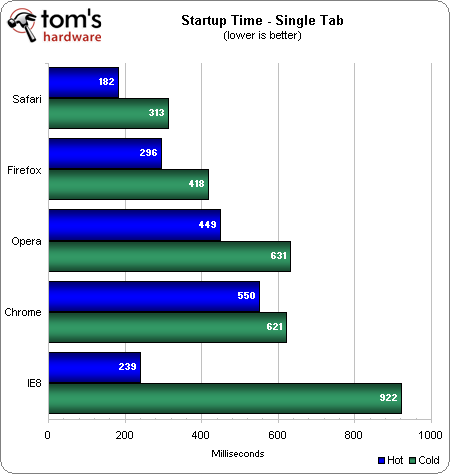
Startup

- Add new comment
- Read more
- 1363 reads
- Feed: Web Browsers News and Reviews
- 1
- 2
- 3
- 4
- 5
- 6
- 7
- 8
- 9
- …
- next ›
- last »