
browsing
Always open Google Chrome on the desktop in Windows 8
When you make a browser the default system web browser in Windows 8 you may notice one of two things. If the developer of the browser has made available a special version of the browser for Windows 8′s startpage, then you will have access to two versions of the browser. The first is the regular desktop version of the browser, the second the start page version of the browser. Depending on where you are and which programs you are using to load websites, you may end up using either one of the browsers.
If you do not want that, for instance if you prefer to open websites always on the desktop as it provides you with better window control options and all that good stuff, you may be glad to hear that there is a way to force the browser to always open on the desktop even if it originally would open the web page on the start page version of Windows 8.
To do that, you need to do a bit of Registry tweaking. Save the following commands as chrome.reg on your computer and run the file afterwards. It will make the necessary changes so that Google Chrome always opens up on the desktop. Please note that you may need to display file extensions first to save the file as a .reg file and not a .reg.txt file. You will also see an UAC prompt which you need to accept to complete the process.

Windows Registry Editor Version 5.00
[HKEY_CLASSES_ROOT\ChromeHTML\shell\open\command]
“DelegateExecute”=-[HKEY_CLASSES_ROOT\Chrome\.exe\shell\open\command]
“DelegateExecute”=-[HKEY_CLASSES_ROOT\Chrome\.exe\shell\opennewwindow\command]
“DelegateExecute”=-[HKEY_CLASSES_ROOT\Chrome\.exe\shell\run\command]
“DelegateExecute”=-
Whenever you open a website now in Windows 8 that will open in the default browser, it will open on the desktop of the operating system and not the start page. Now, if anyone could figure out how to do the same for the Firefox web browser, I’d be eternally grateful. (via My Digital Life and Ilev)
- Add new comment
- Read more
- 1622 reads
- Feed: gHacks technology news
- Original article
Attention: Check Google Chrome for the Settings Protector extension
Reports began to appear yesterday on Google Chrome’s official about a new extension that installed itself automatically in the browser. Chrome users noticed that the Settings Protector extension appeared on the extensions page of the browser without their doing. According to reports, the extension installed itself automatically in the browser. The only information displayed on the extensions page is the name of the extension, Settings Protector, and its version, 1.0.
No information have been provided about Chrome versions, new software installations, updates, or anything else that may be related to the automatic installation of the extension. Right now, it is not clear what triggers the installation of Settings Protector in the browser. It sounds like an extension that would ship with a security program, but it can as well be installed through exploits of the browser or the operating system, malware that managed to compromise the system, or as part of an adware offer of regular applications.

Here is how you can check whether Settings Protector is installed on your system. Open the Chrome web browser and click on the settings icon at the top right. Select Tools > Extensions from the context menu and look for Settings Protector 1.0 there. If you find it there, disable it or click on the trashcan icon to delete it from the browser.
I highly suggest to run a scan with Malwarebytes AntiMalware and Dr.Web CureIt to make sure it was not dropped by malware still running on the system.
- Add new comment
- Read more
- 1681 reads
- Feed: gHacks technology news
- Original article
Windows 8: Google Chrome app advancing
Before I start looking at recent advances that Google implemented into the Windows 8 version of its Chrome web browser, I’d like to take a moment to point out that I’m still not entirely sure how apps that run on the startpage but not installed from the Windows Store are called. Do I simply refer to them as apps? Or are they called Windows Store apps regardless of the fact that they have no connection with the built-in store?
Anyway, Google like Mozilla, is working on an app version of its Chrome browser that works directly as an application on Windows 8′s startpage. Before you can use the app version you need to make Chrome the default web browser on the system.To make Chrome the default browser load the settings using this url chrome://chrome/settings/ and locate the default browser option there to do just that. Once you have done that, you can use Chrome both on the startpage directly as a fullscreen application and on the classic desktop.
First thing that you may notice in the most recent dev version of the browser is an option to switch to the “other” version of the browser. You can switch from the desktop version of Chrome to the app version (Google calls it Windows 8 Mode) and vice versa taking all open tabs with you in the process.

Please note that you can only run one Chrome version at the time. If you have configured Chrome to launch in Windows 8 mode, the browser will launch in that mode even if you launch it from the desktop.
The two Chrome versions on Windows 8 previously were using different user profiles which Google in a recent version changed. Google Chrome on Windows 8 is now sharing the user profile, so that extensions, the browsing history and other data are available in both versions of the browser. This puts Google one step ahead of Mozilla who recently announced that add-ons synchronization between both browser versions is not included in the initial release.
- Add new comment
- Read more
- 1297 reads
- Feed: gHacks technology news
- Original article
Google Chrome hanging on startup
For the past two days I have been noticing a issue with Google’s Chrome browser. Whenever I would start the browser, it would hang for a couple of seconds before the tabs of the previous session were loaded. This happened even if I had only one tab open that needed to be restored, so that I was pretty certain it was not caused by tab overload. I also tried switching to load the new tab page only on start up of the browser, which also did not resolve the issue. I’m experiencing hangs not only in Chrome Dev but also in Chrome Canary, which are both installed on a Windows 7 64-bit pro system.
- I have disabled all plugins and extensions to see if the issue was caused by addons but that was not the case either.
- I then tried to launch the browser in Incognito Mode and that too hung on startup for 5-10 seconds before the browser became responsive.
- Next try, a new profile. Starting Chrome with the parameter –user-data-dir=/tmp/test_profile_dir did not resolve the hanging on startup either.

- Clearing the complete browsing history did not have an effect either.
- Verified that known Chrome hang and crash issues where not causing the freezes on startup
- A restart of the PC did not resolve the issue either.
I grew pretty desperate at this point, and decided to uninstall Google Chrome on the PC to start with a clean installation of the browser afterwards in hope that this would resolve the freezes that I was experiencing. I first uninstalled Chrome Dev from my Windows system and all of the data it contained and restarted the computer afterwards. Once I did that I downloaded the installer from Softpedia, ran it, and started Chrome.
Guess what, the browser started without hangs or freezes. To make sure that this was not just a one time thing or so, I decided to open a few tabs before restarting it to see if that was the case. Well, Chrome is starting up fast and without issues now, even after restarts of the PC and some heavy use.
Keep in mind that you may lose data if you uninstall Chrome this way. If you do not want that to happen, configure Chrome to sync settings with a Google Account. This may however have the consequence that the cause for the problem is synced with your new Chrome installation so that you are experiencing it again.
Have you experienced issues with Chrome before in this regard? How did you resolve them?
- Add new comment
- Read more
- 953 reads
- Feed: gHacks technology news
- Original article
Where to go when you need Google Chrome help
Where do you go when you run into issues in Google Chrome that you can’t fix on your own? Say you get Shockwave Flash has crashed messages all the time, or can’t install extensions from third party sites. You probably fire up your favorite web browser, open your favorite search engine and search for the issue that you are experiencing in hope that someone else already encountered it before, and posted a solution online.
That works well for common issues and it is relatively certain that you will find a blog or forum post on the Internet to help you out. Sometimes though this first attempt at troubleshooting the issue may not have the desired result. Or maybe, you need help with an issue that no one has encountered before, for instance if you are running a cutting edge version of the browser that just got released.
There are two locations on the Internet where you get -official- support for Google Chrome. Google is unfortunately a company that tries to minimize support for the majority of its products. This means that you can’t call Google support because there is no such thing for us mere mortals. But there is also no email support available either. This is leaving users with support forums and product help.
The Chrome help site should be your first stop, as it is not only listing tips on how to use Chrome but also problem fixing help for common issues that users may experience while using Chrome. Plus, you avoid the embarrassment of posting a question in the support forum that is already answered here.

Chance is however that Chrome help won’t -uhm- help, which leaves you with the support forum. You do need a Google account to post here, and depending on day, time and luck, your post may be picked up by a Google employee. Usually though that won’t happen and it is more likely that other users try to help resolve your issue. Sometimes though you may not get a single response here.
Instead of giving up just yet, there is another option that you have to improve your chance of getting a response. You find posts by Google Chrome community managers pinned at the top of the forum. To get the attention of these community managers send them a message on Google Plus.
Be sure to be precise and polite when you do, as this improves your chance of getting a response. It is a little known tip that works surprisingly well if you run into issues. This actually works well if you have issues with other Google products.
- Add new comment
- Read more
- 767 reads
- Feed: gHacks technology news
- Original article
Google Chrome to get Do Not Track soon
An option to enable Do Not Track headers landed in today’s Chromium release which web users can make use of to notify servers, websites and scripts that they do not want to be tracked on the Internet. The main aim of Do Not Track is to provide Internet users with an option to opt-out of targeted advertising on the Internet.
The idea here is to provide users with an option in the browser to enable the Do Not Track header there. This has caused some controversy recently when Microsoft announced that it would enable DNT by default for all users of the Internet Explorer 10 browser as it goes against the idea of making DNT a user’s choice (in contrast to a browser developer’s choice for the user).
The browser will send the Do Not Track header with connection requests when the feature is enabled by the user. From there, it depends largely on the advertising companies as there is no legal requirement to accept the request. If it is honored by the advertiser, user tracking is disabled. This does not mean that ads won’t be displayed to the user. The advertisement displayed may however not be as personal as it would have been if the Do Not Track header would not have been included in the header.
Google Chrome is the only major browser that did not support Do Not Track until now. Firefox, Opera and Internet Explorer 10 all support the feature. The feature is available under Privacy in the Chrome settings. The easiest way to get there is to enter chrome://chrome/settings/ in the address bar, scroll down, click on show advanced settings to reveal additional browser preferences including the Privacy section here.

To activate simply check the “Send a ‘Do Not Track’ request with your browsing traffic box. Chrome from that moment on will include the DNT header with all requests that it makes. Expect the setting to go through all versions of Chrome in the coming weeks and months.
- Add new comment
- Read more
- 664 reads
- Feed: gHacks technology news
- Original article
One-Click access to all of Google Chrome’s privacy settings
There are numerous reasons to make sure that your web browser does not leak information to the Internet or the browser maker if that is not required for functionality that you use. Preferences that handle features such as third party cookies or prefeteching are usually not found in a single location where they can be easily managed.
When it comes to privacy in Google Chrome, preferences can be found on the browser’s settings page and on the experimental chrome://flags page.
The Google Chrome extension tries to resolve these issues by providing one-click access to these privacy settings. It adds an icon to the browser’s address bar on install that displays all privacy management options that it makes available in the browser.

All privacy related settings can be turned on or off with a single click of the mouse button:
- Third party cookies
- Auto fill – Automatically fill out forms
- Instant mode – Chrome will search for and display search suggestions in the address bar while you type
- Safe browsing mode
- Search suggestions
- Spelling service
- Translation service
- Hyperlink auditing – Chrome can send auditing pings when enabled
- Referrers – Can break websites if disabled
- Network Predictions – Pre-revolsing DNS queries and prefetching websites
- Alternate error pages
You can move the mouse cursor over the information icon to display information about one of the privacy settings; helpful if you do not know how the feature is related to your privacy on the Internet. All settings are privacy related, with some enabled, others disabled. If you do not mind the implications, you get fast access to some experimental features here that you can enabled in the browser. It is important to note that some settings, referrers for instance, may break websites when disabled.
Privacy Manager’s second big feature is the option to clean data on start of the browser. This works similar to the browser’s own clear browsing data feature, but with additional data locations to select. This includes among other Web SQL and File systems.
- Add new comment
- Read more
- 3847 reads
- Feed: gHacks technology news
- Original article
How to disable Google Chrome’s Action box + icon
If you are running Chrome Canary, and maybe other versions of the web browser as well, you may have noticed the + icon that Google has added to the browser’s address bar. If you do, you also may have noticed that the classic star icon, used to add a bookmark to the browser, has been removed at the same time.
The bookmark star has been replaced by the rather blunt plus (+) icon that Google calls Action Box. The reason for this is that it displays multiple actions when clicked on. It first lets you bookmark the page, and second share the page. Chrome stable users can enable the Action Box in the chrome://flags experimental feature listing. A restart of the web browser is required afterwards. I could not get the plus icon to display its contents though.
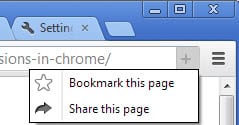
Clicking on the Share this page entry displays a popup highlighting Chrome extensions that you can use to share websites that you find interesting. This did not work at the time of writing in Chrome Canary, as no popup was displayed on the screen. The feature did work in the latest Chrome Dev version though.

A click on add to Chrome installs the extension right away in the browser bypassing the Chrome Web Store. The more suggestions link opens a custom store page highlighting all sharing extensions that work with the feature. Available extensions include WordPress.com, Twitter, Flattr, Gmail, LinkedIn, Tumblr, Google+, Reddit and AddThis. Bookmarked pages are still displaying the yellow star icon in the browser’s address bar.
- Add new comment
- Read more
- 767 reads
- Feed: gHacks technology news
- Original article
Fix Google Chrome crashes and hangs
I have not really noticed any crashes or hangs in Google Chrome, or other web browsers for that matter, in recent time. That said, I do know of a few users who are experiencing crashes in the browser, either because they emailed me asking for help, or because I know them personally and they have mentioned issues to me.
Even though Chrome is running fine for the majority of users, it too has issues of its own. From too high memory usage to sound issues and ads in the browser to the dreaded Oops! Google Chrome could not connect to error.
Chrome users may experience crashes when they are running third party software that is not compatible with the web browser. It can be that an older version is outdated, or that even the latest version of an application is not compatible with the browser.
Software incompatibilities are the primary reason for crashes and hangs in the Chrome browser. Many of the issues can be resolved with updates, but since you do not know which program to update, it is recommended to update them all. Try a program like the software updates monitor Sumo to find out which of your programs need updating.

Usually it is an app that is running at the time Chrome is running or an app that is somehow integrated into the browser. This can be a security software, a download manager, or a desktop app that runs all the time on the computer.
The following list highlights applications that may cause Chrome to crash or hang.
- Internet Download Manager (IDM) – This issue is caused by outdated versions of Internet Download Manager. If you are running IDM 6.02 or earlier, you may experience crashes in the Google Chrome web browser. To resolve, update the program to the latest version (at the time of writing that is 6.12). You can alternatively disable advanced browser integration under Options > General in IDM.
- Asus EeePC print crash – Asus EeePC owners that have Asus WebStorage installed my experience print crashes in Chrome. This too is caused by an outdated program version which you can resolve by updating Web Storage to the latest version.
- Stopzilla (iS3 Anti-Spyware) may cause Chrome to crash. Google suggests to update the program to the latest version to see if it resolves the issue. If not, disabling or uninstalling is an option.
- NVIDIA Network Access Manager is incompatible with Chrome. Suggested actions are to temporarily disable the software
- The performance optimization and monitoring application NVIDIA nTune is incompatible with Google Chrome. Temporarily disabling may resolve the issue.
- NVIDIA Desktop Explorer is also incompatible with Google Chrome. This is caused by the nvshell.dll which you may want to remove from the system. Alternatively, disable or uninstall the desktop manager.
- ESET Nod32 Antivirus – Earlier versions of the antivirus software are incompatible. If you are running version 2.7 or earlier you may notice crashes in Chrome. Solution: update to the latest version or disable Internet monitoring.
- Hide My IP may cause crashes in Google Chrome. Disable for the time being or check for updates to see if it resolves the crash issues.
- Venturi Firewall can crash Chrome as well. Try updating the desktop firewall to see if it resolves the issue. If not, disabling or uninstalling may be the only option if you want to continue using Chrome.
- WinMount, a program to compress and decompress archives and to mount archives on the system, appears to be incompatible with Chrome. You may try and update the software, or if that does not work, disable it instead.
- PPLive, a live video streaming software, may cause Chrome to hang or crash. To resolve, update to the latest version. If issues remain, disable the integration in Chrome.
- Folder Size
- Profile corruption. If Chrome crashes seconds after opening, or get “Aw Snao” error messages all the time, your profile may be corrupt. Follow the instruction to create a new default profile to see if it resolves the issue.
- Other software that may crash Google Chrome: Safe Eyes Parental Control Software, ContentWatch, Microsoft Office XP Input Method Editor,Naomi Web Filter,Trusteer Rapport. Try updating first, if that does not help, disable or uninstall.
If you can’t find a solution and do not want to or can’t uninstall or disable the application causing the issue, you may want to post in the official to get help with the issue.
- Add new comment
- Read more
- 910 reads
- Feed: gHacks technology news
- Original article
Google Chrome: Control website permissions from the address bar
If you are using Google Chrome 23 or higher you may have noticed a change to how website permissions are controlled in the browser. To do that in previous versions, you had to open the content settings of the browser to manage which websites could load images, cookies, JavaScript, handlers, plugins or popups and which could not. Chrome by default is configured to allow all contents but popups on all websites. You can use exceptions to forbid the use on select websites, or switch to blocking certain types of contents on all websites but on sites in your exception list.
Up until now you had two options to manage content settings. First by opening the content settings in the Chrome settings dialog, or, if contents are blocked on a site, with a click on the icon indicating this in the browser’s address bar.
This changes with Google Chrome 23 as you can now click on the security icon on the left of the web url in the browser’s address bar to display content settings right there.

The menu has been divided into two tabs, permissions and connection. The permissions tab displays cookie and site data information at the top, and below that all permissions of the website you are on.
Cookies and site data displays allowed and blocked first and third party cookies. A link to the cookie manager provides you with options to remove some or all of the cookies with just a few clicks.
Permissions let you change the following permissions for the domain you are on (allowed by default, always on, always blocked)
- Images
- JavaScript
- Plugins
- Popups
- Location
- Notifications
- Fullscreen
- Mouse Lock
- Media
Chrome users can now edit permissions for a single website directly in the main browser window instead of having to manage exceptions for content settings in the browser’s options. Changes take effect after you reload the page or navigate to a different page on the domain.

The security information have been moved to the connection tab instead. Only the domain name and whether the identity has been verified are displayed on both pages. All remaining security information are displayed on the connection page.
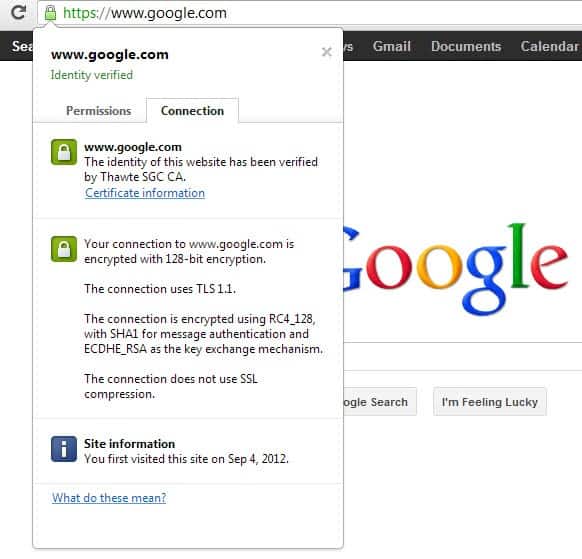
The ability to control permissions right from the page you are on makes the whole process easier to handle. Definitely an improvement for Chrome users who use the permission feature in the web browser.
- Add new comment
- Read more
- 1136 reads
- Feed: gHacks technology news
- Original article
Delete Google Chrome browsing data on exit
Google Chrome offers its users several options when it comes to clearing the browsing data. One of the quickest ways is to use the Ctlr-Shift-Del shortcut to bring up the clear browsing data menu where you can select the data types that you want to delete (Firefox users: the same shortcut is opening the browser’s delete browsing data menu as well).
Besides selecting what you want to delete, you can also select from which point in time on you want the items to be cleared.If you prefer to use the mouse, you can click on the wrench icon, and then on Tools > Clear Browsing Data to open the same menu this way.

It is rather interesting that Chrome does not ship with options to automatically clear all browsing data on exit. While it is possible to delete all cookies and site-data, it currently does not seem possible to delete all data on exit.
You need to use browser extensions or third party programs like CCleaner to automatically delete Google Chrome browsing data. One of the extensions that you can use for that purpose is which offers a rich functionality.
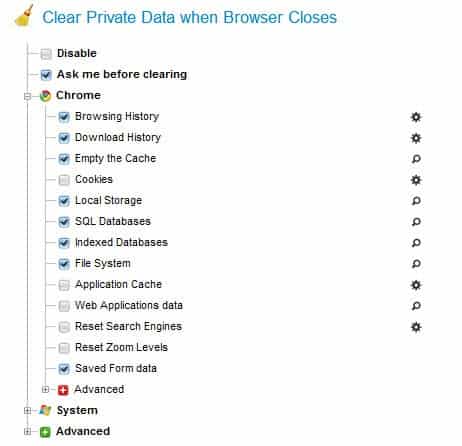
Here is the list of data that it can clean automatically when the browser window is closed:
- Browsing history
- Download history
- Browser cache
- Cookies
- Local Storage
- SQL databases
- Indexed databases
- File system
- Application cache
- Web applications data
- Reset search engines
- Reset zoom levels
- Saved form data
- Saves passwords
- Extensions cookies
- Extensions Local Storage
- Extensions SQL databases
- Extensions indexed databases
- Extensions file system
- Google Gears data
- Reset Chrome Local State
Plus the following that are not Chrome specific:
- Recycle Bin
- Temporary files
- Recently opened files
- Flash Local Shared Objects (LSO)
- Silverlight Cookies
- Java Cache
You can furthermore select to delete the data using secure overwrites to protect the data against file recovery attempts, configure Click&Clean to run an external application like CCleaner or Eraser, and whitelist cookies and site data to block the data from being deleted with the rest of the data.
It is not really clear why Google is not integrating an option to delete all browsing data on exit in the Chrome browser.
The Click&Clean extension for the browser makes more than up for it though, and it is recommended to anyone who wants that feature to be available in the browser.
- Add new comment
- Read more
- 1324 reads
- Feed: gHacks technology news
- Original article
How to disable or remove Google Chrome plugins
The Google Chrome web browser – just like Firefox and other browsers – integrates plugins automatically that it finds on the system. While this is comfortable in a way, as these can be used by websites to display contents without the user having to enable them first, it can also be a security risk, especially if plugins are not up to date.
Chrome users should take a look at the plugin listing of the browser to make sure only plugins that are needed are activated in it.
Chrome Plugins
First thing that you may want to do is load chrome://plugins in the browser to see the list of plugins that have been found by Chrome. Plugins with a white background are enabled, while gray background plugins are disabled.

The easiest way to enable or disable plugins is to click on the links in the plugin manager to do so. For some plugins, you may notice that Chrome has detected more than one plugin version, and it may happen that both are activated.
To manage those plugins, you need to first click on the details link in the upper right corner of the screen.

Here you see detailed information about the plugin versions, their paths and whether they are enabled or disabled in the browser.For Adobe Flash for instance, you may notice that the browser has picked up the internal Flash plugin, and a Flash plugin that got installed for browsers like Opera or Firefox. It does not really make sense to have both enabled in the browser unless you are testing a new version, a beta for instance. It is therefore always recommended to make sure that only one version of a plugin is enabled at the same time in Chrome or any other browser for that matter.
When it comes to versions, you usually want to make sure that the latest plugin version is enabled and not an earlier version.
When it comes to removing or deleting plugins in Chrome, you have two major options:
- Uninstall the software that has made the plugin available on the computer system
- Remove the plugin manually from the system
The first option is rather obvious and does not really need explaining to get it done right. The second however needs some explanation. As you can see on the screenshot above, Chrome lists the location the plugin is installed on the system. To remove plugins from the system you’d open the path in Windows Explorer or another file manager and delete it there. It is suggested to create a backup first, or, instead of deleting the file, move it out of the folder into a folder that does not get picked up by Chrome automatically.
So, if you do not need the Microsoft Office plugin in Chrome, you would first look at the location information of the Microsoft Office plugin.

All it takes then is to open the folder in Windows Explorer and either delete the file listed outright, or move it into another location on your hard drive for backup and restoration purposes.
Click to play
There is another option that Chrome users have when it comes to dealing with plugins in the browser. I have reviewed Chrome’s Click to play feature before and suggest you check out the guide for an in depth review of it. Only this much: with click to play plugins that are activated in Chrome do not get loaded when you load a website in the browser. You instead see a place holder in the area on the page that you can click on to load the plugin. This can speed up web browsing as it takes less time to connect to web pages that embed contents that require plugins. (inspiration taken from Techdows)
- Add new comment
- Read more
- 1263 reads
- Feed: gHacks technology news
- Original article
Make Chrome Less Distracting with Vimium

Coders love text editor Vim because you can do everything from the keyboard, avoiding detours into into slow, distracting mouse-click work. Here's how a single Chrome extension can change your browsing habits in similar get-what-you-came-for fashion.More »
- Add new comment
- 787 reads
- Feed: Lifehacker: Google Chrome
Google Chrome for Android now out of beta
Google today has announced the release of the first stable version of the Google Chrome web browser for the Android operating system. According to Google, Chrome for Android is now available for download on , Google’s web based online store, and via the Google Play store on the mobile device directly.
The stable version of Google Chrome for Android is only available for Android 4.0 or later devices. The update does not include any new features worth mentioning, and Google notes that it mainly consists of stability and performance fixes since the last beta release.

Chrome for Android has been designed for smaller screens found on mobile devices like phones or tablets. Google has integrated many features of the desktop Chrome application in the mobile version, including the browser’s address bar that shares a single field for searching and navigating, a tab-based interface that allows you to switch between multiple websites in the browser, the ability to send pages from the desktop version of Chrome to the mobile client, the private browsing mode, and Chrome Sync to synchronize bookmarks and other date between desktop and mobile versions of the browser.
Here is a promotional video for Chrome for Android. Keep in mind that this video is showing highlights of an earlier beta version of the browser.
Chrome for Android is not the first browser that has made an impact this week. Mozilla, the company behind Firefox, earlier this week, released an update for Firefox for Android that features performance improvements, the inclusion of Firefox Sync to synchronize data between desktop and mobile versions of Firefox, and the new personalized start page. You can read up on all of the changes by following the link posted above.
Are you using Chrome or Firefox on your Android device? Have you tried either one? Let us know what you think of the browsers that you tried, or why you did not try them, in the comments.
- Add new comment
- Read more
- 3592 reads
- Feed: gHacks technology news
- Original article
Image Collector Extension for Google Chrome
While it is relatively simply to download individual images using a web browser’s save image as option from web pages they are linked or hosted on, this method fails short when it comes to downloading lots of images from a website. While you can still use the browser’s internal option to save images, you end up wasting lots of time doing so.
That’s where programs like Bulk Image Downloader, Image Download II or DownThemAll for the Firefox web browser step in, as they automate the process as much as possible.
A similar extension for the Chrome browser is . It too can be used to download images more effectively on the Internet. Once you have installed the extension in Chrome, you will notice that it adds an icon to the browser’s address bar whenever it identifies images that are larger than a selected size on the active website. You can then click on the icon to display an overlay menu.

Things get a bit complicated at this point depending on the operating system that you are using. Windows users for instance need to install Cygwin to download images to the local system. There is however another option that will please many users: downloading images directly to Dropbox or Google Drive.
For that, you need to connect your Dropbox or Google Drive account to the Chrome extension. Once done, you simply select the service that you want to use in the extension overlay, and the images will be automatically downloaded to the online storage service by the extension. And since you are usually synchronizing the storage with local systems, you eventually will have those files on your local system as well.
If you think that this is too complicated or not practicable enough, I suggest you take a look at the Download Master extension for Chrome instead, which can scan pages for images which you can then download with just a few clicks. (found at Freeware Genius)
- Add new comment
- Read more
- 897 reads
- Feed: gHacks technology news
- Original article
Firefox: Send Tabs to Google Chrome
The Firefox web browser has been my main Internet browser for the past years. Some time ago I decided to disable the Flash plugin in the browser, which sometimes led to a situation where I had to use a different browser to access Flash contents on the Internet. My browser for choice for those situations is the Google Chrome web browser, which ships with am integrated version of Adobe Flash.
Whenever I encounter Flash contents in Firefox, a video, game or presentation for instance, I copy and paste the web address into Chrome to access the contents there.
The Firefox extension Open in Chrome has made this process a tad easier by eliminating the need to copy and paste the web address.
Once installed in Firefox, it can be used to send the active tab, or all open tabs of the active browsing window, to a version of Chrome that is available on the system. The extension tries to pick up the correct version of the browser automatically, and provides you with the means to pick a different location in the preferences.
- Add new comment
- Read more
- 248 reads
- Feed: gHacks technology news
- Original article
Google Chrome: Windows 8 Metro version preview coming soon
The two interfaces of Microsoft’s upcoming Windows 8 operating system put software developers in an awkward position. If they want their software to be available on the full system they would need to create two different versions of the application, one for the Metro interface, and one for the desktop (which already exists in the case of software that is already available for Windows). While it is certainly possible to simply add a link to the Metro interface that switches to the desktop version when executed, it would mean that the software would not really support the Metro user interface.
When it comes to web browsers, we do know that Microsoft has already implemented two versions of its Internet Explorer 10 browser that support both interfaces. Mozilla is also working on a Firefox Metro version for Windows 8, and is making good progress so far.
Google back in March announced that it too would create a Google Chrome version for Windows 8′s Metro interface but did not release a test version yet. The company yesterday announced that the initial release of Chrome in Metro mode will be made available soon in the next Chrome Dev Channel release.
- Add new comment
- Read more
- 309 reads
- Feed: gHacks technology news
- Original article
Google Chrome Tab Stacking
I’m not really sure when Google introduced the tab stacking feature in the Google Chrome browser, only that it is available at least in the Windows Chrome Canary builds right now. Tab stacking basically allows you to stack tabs on top of each other to save screen estate when the tab count reaches a level where the browser would originally resort to scrolling.
If I’m not mistaken, it was Opera that introduced tab stacks in version 11 before any other browser. I personally think that all major browsers will eventually introduce a tab stacking feature eventually as it offers a great way of saving screen estate in the tab bar if multiple pages on the same domain name are open in the Internet browser.
Back to Google Chrome and the browser’s tab stacking implementation. The feature is currently only available via the chrome://flags list of experimental features. Just load chrome://flags/ in the browser’s address bar, hit F3 and enter stacked tabs in the on-page search form to find the parameter immediately on the page.
It reads: Stacked Tabs. Tabs never shrink, instead they stack on top of each other when there is not enough space.

Click on the Enable link and restart the browser to enable tab stacking in Google Chrome. If you have tried Opera’s tab stacking functionality before, you will notice that Chrome’s differs in core aspects.
- Add new comment
- Read more
- 980 reads
- Feed: gHacks technology news
- Original article
Hide Page Elements Temporarily In Google Chrome
If you print out web pages regularly you may have noticed that it may not be the most economical thing to do, at least when it comes to printing out web pages that do not have a special print button attached to them to only print out the article or information, and not headers, sidebars or advertisement.
You have got multiple options on how to make the process more economical. You can only print a selection, but that works only well if the text is not cluttered with unrelated items. You can alternatively install a readability extension like Evernote Clearly or Tranquility for that purpose, or an extension like Nuke Anything that lets you remove page elements in the browser temporarily.
The author of the Google Chrome extension was inspired by Nuke Anything, and had ported the extensions functionality to the Chrome browser. It adds a new entry to the Chrome right-click context menu that you can use to remove select page elements from a web page. This can be useful before printing the web page, or as means to read the contents more comfortably. If you ever had to concentrate on reading an article while a video ad was shown in the sidebar, you know how you’d wish there would be a way to remove that ad right now from that page.
Dynamite displays two options in the context menu. It is possible to remove the page element the mouse hovers over right at that moment, or all page elements but the one the mouse is hovering over.
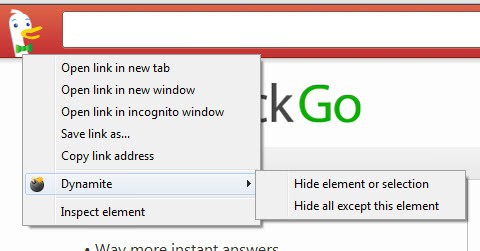
The hide all but the select element option can be very useful on sites where you are only interested in the article. It is usually a lot faster than hiding individual elements on a page one after the other. It is however not as comfortable to use than a readability extension. For printing information though, it is an excellent option.
There is no option to restore a single element once you have hid it using the extension. Your only option to begin anew is to reload the page, at which point all hidden elements will be revealed again.
- Add new comment
- Read more
- 717 reads
- Feed: gHacks technology news
- Original article
JavaScript Popup Blocker for Google Chrome
Popups, I do not like them, at all. While they are sometimes used by sites to make part of the website’s functionality available, they are more often than not used for advertisement. And while there is nothing wrong with advertising in general, popup ads tend to be one of the most annoying forms of advertisement that you encounter on the Internet. The core reason being that new windows are spawned, that you need to close manually at one point or the other. That’s fine if one window spawns, but there are sites out there that bombard you with popups.
With Firefox, I have NoScript which takes care of the popups. I can’t really say when I have seen the last unrequested popup show up in the web browser. For Chrome, things have been different. While you get your assortment of ad blocking scripts for the browser, I found the extension to be more reliable when it comes to blocking popup windows in the browser.
- Add new comment
- Read more
- 961 reads
- Feed: gHacks technology news
- Original article
- 1
- 2
- 3
- 4
- 5
- 6
- 7
- next ›
- last »